Computer use for agents: agent-desktop install and first run
Computer use for agents with agent-desktop: install with npm, grant macOS Accessibility, snapshot an app, click a ref, scope reads and run several agents.
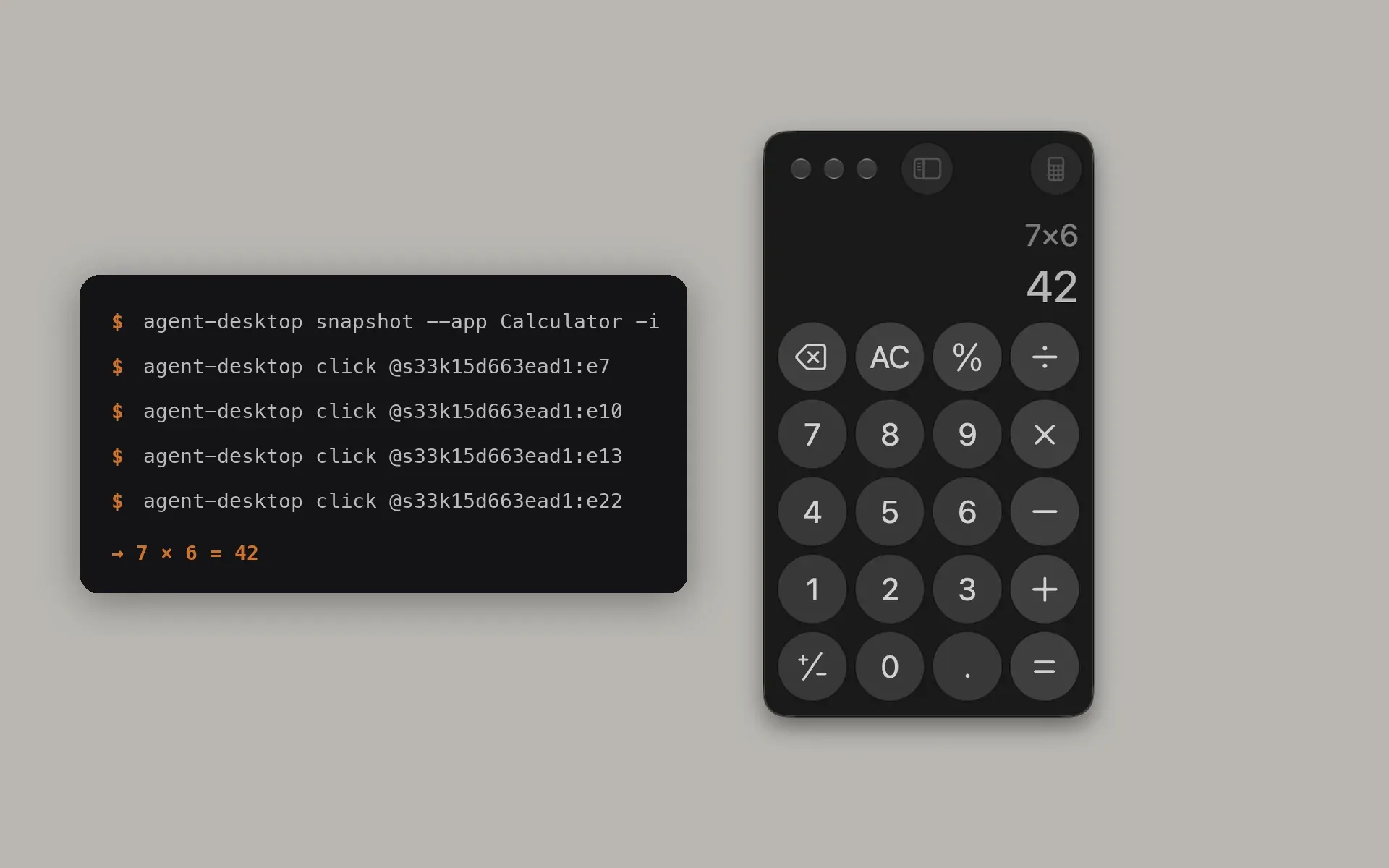
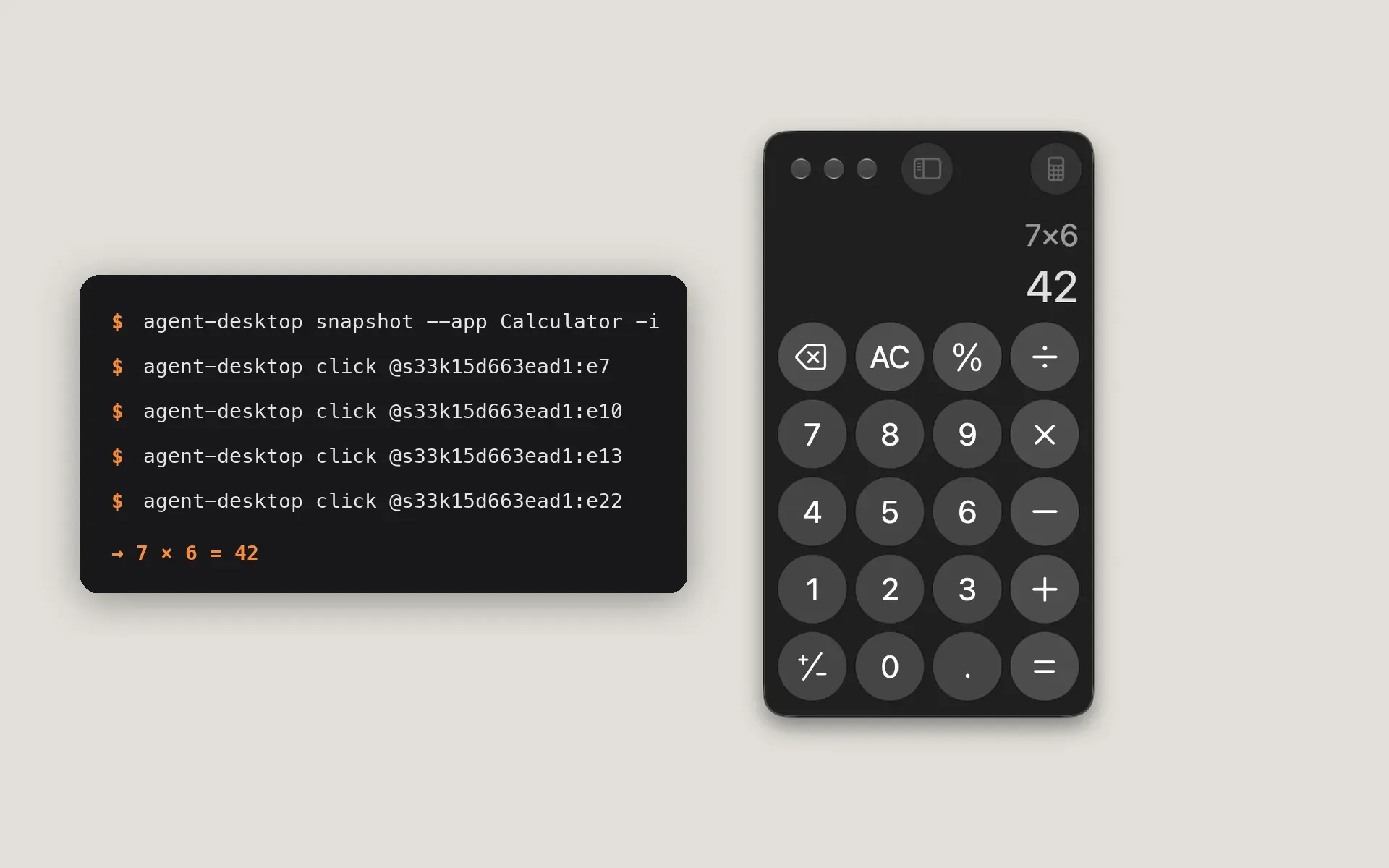
Computer use for agents means the agent reads and operates desktop apps through the OS accessibility tree, not pixels. agent-desktop is a CLI and C library for macOS, Windows and Linux, and a first run on a Mac takes an install, one permission grant and a snapshot.
Install and grant the permission
The package is published on npm as agent-desktop, so the install is one command, and it includes native binaries and platform helpers.
npm install -g agent-desktopagent-desktop versionmacOS needs Accessibility permission, and the guide is one command away.
agent-desktop permissions --guideOn macOS, the command host exits after 15 idle minutes, so a long pause just means a cold start. The README lists the other systems too: Windows needs no grant for apps at your terminal’s integrity level, and Linux needs the graphical session with at-spi2-core.
Snapshot, click, snapshot again
The loop is observe, act on a ref, observe again. Any app name from agent-desktop list-apps works; Finder is the macOS example. These are the README’s first commands, copied as written.
agent-desktop snapshot --app Finder -iagent-desktop click @s8f3k2p9:e8agent-desktop snapshot --app Finder -iRun on Calculator, the same loop returned a snapshot with 27 refs. Every digit key is a button with a click action, and each ref starts with its snapshot id.
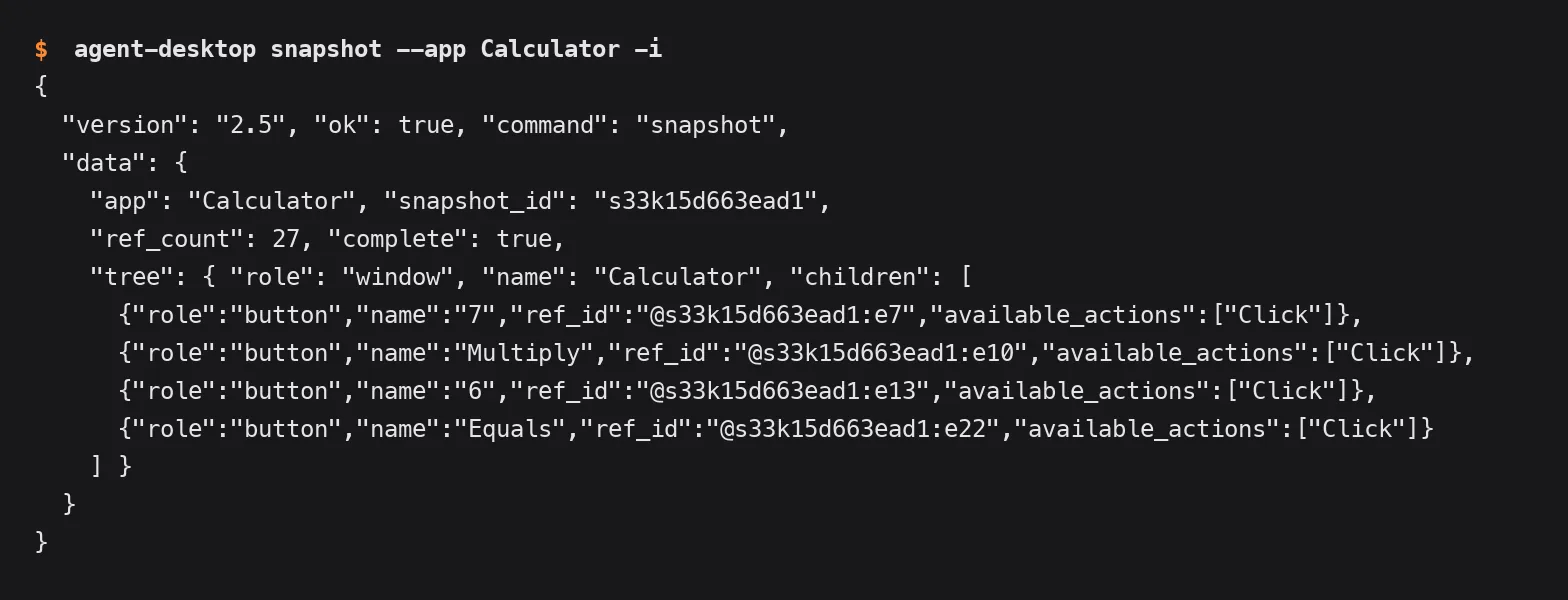
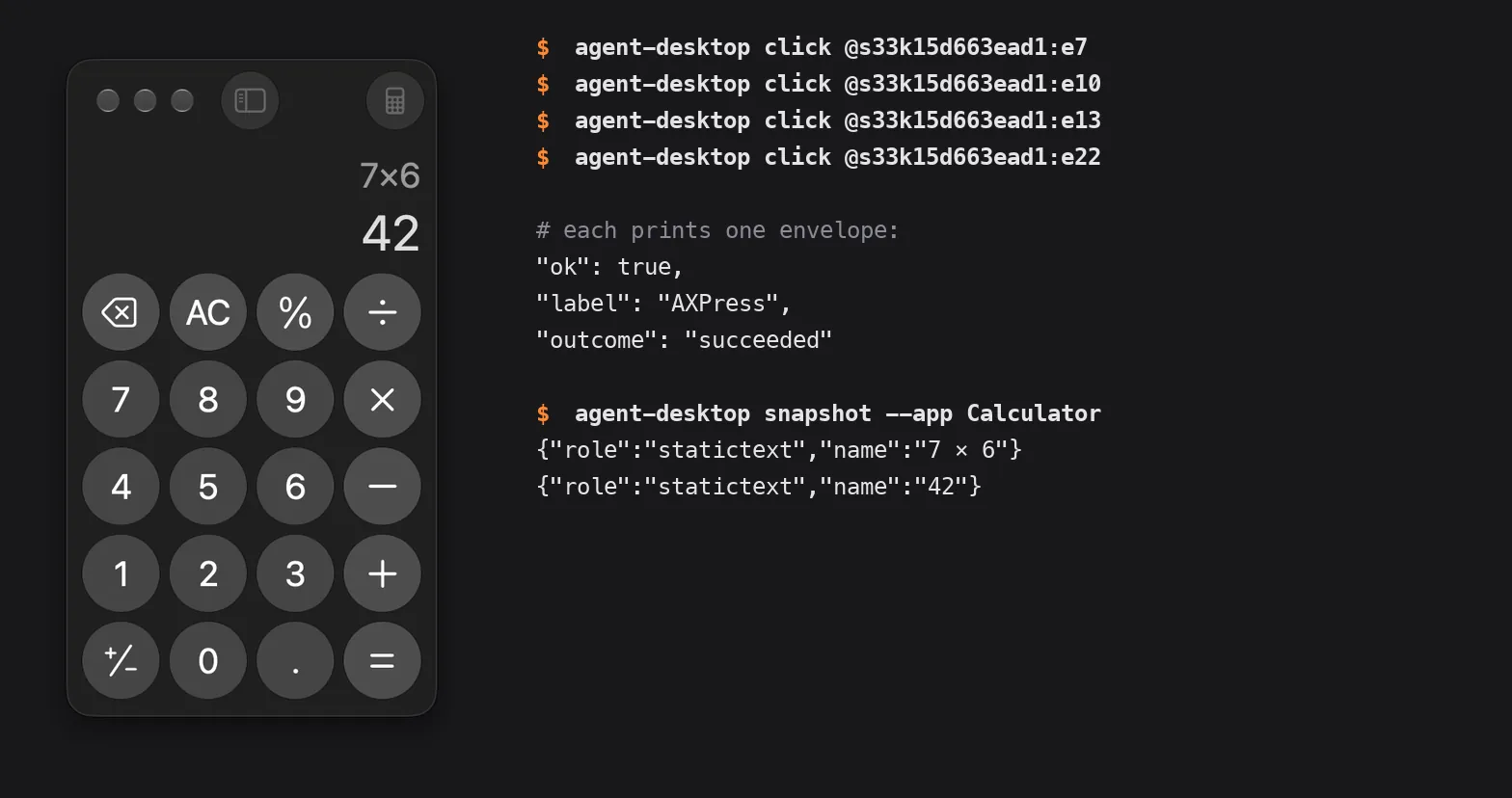
Clicking the refs for 7, multiply, 6 and equals, then snapshotting again, read 7 × 6 and 42 in the display. Each click printed one JSON envelope with ok set to true.
A ref belongs to its snapshot. Refs are deterministic inside one snapshot but are not stable across UI changes, so a changed screen means a fresh snapshot.
| Situation | What the docs say |
|---|---|
Bare @e8 | fails with INVALID_ARGS, so always write the snapshot id first |
| UI changed | returns STALE_REF or AMBIGUOUS_TARGET, so take a new snapshot |
| Any error | retry only when error.disposition.retry is safe |
How it reads an app
The launch demo shows the idea in two beats. First the tree is read, and every control becomes a node with a ref. Then the agent drills into one part of the window and leaves the rest alone.
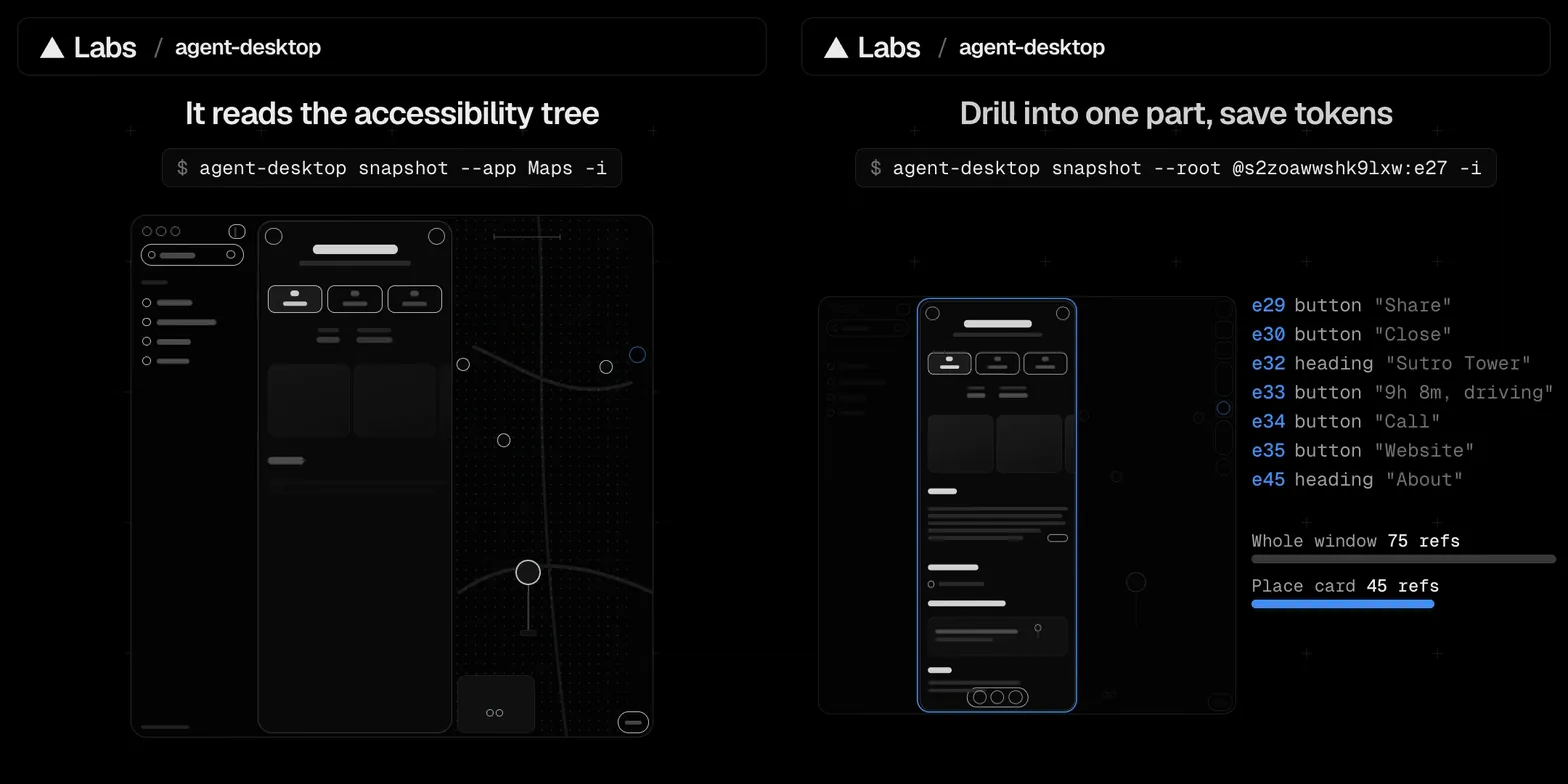
The agent acts on refs, not pixels. That is why the loop stays in your agent: the tool reports the tree, the agent decides, and a snapshot checks the result.
Scope reads on dense apps
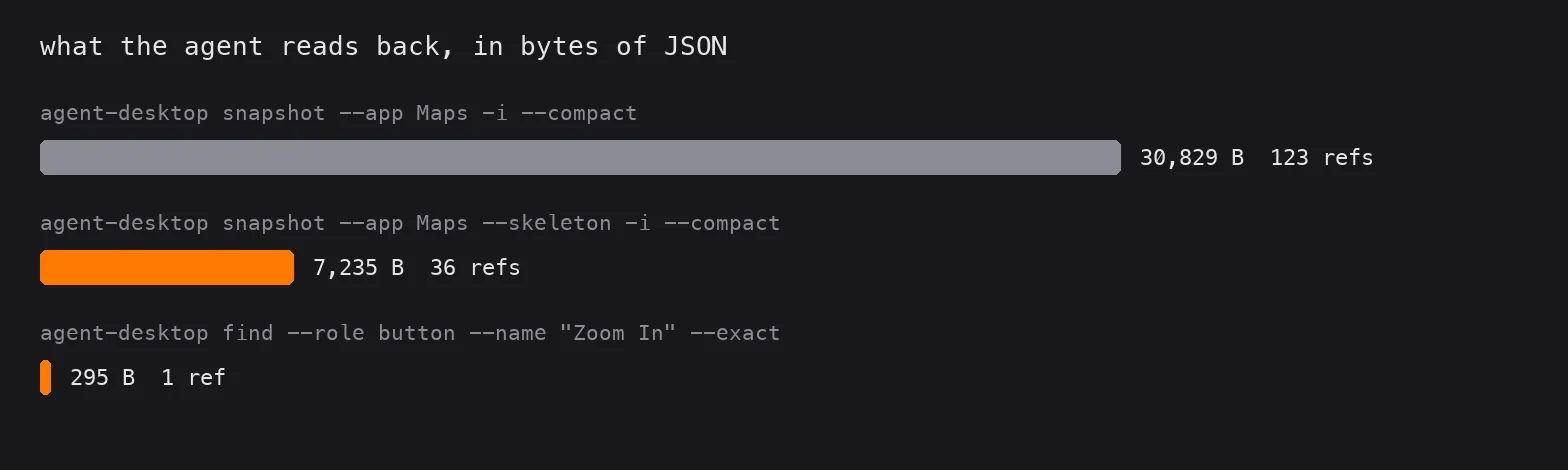
A full read of a busy window is mostly noise. A skeleton snapshot clamps the depth and shows how many children a group holds, then a root snapshot drills into the part that matters, and find answers a single question.
agent-desktop snapshot --app Maps --skeleton -i --compactagent-desktop snapshot --root @s1xtpimekcf6px:e27 -i --compactagent-desktop find --app Maps --role button --name "Zoom In" --exactOn Maps, the whole window came to 123 refs and 30,829 bytes of JSON. The skeleton read 36 refs in 7,235 bytes, and the find call returned one ref in 295 bytes.
Several agents on one app
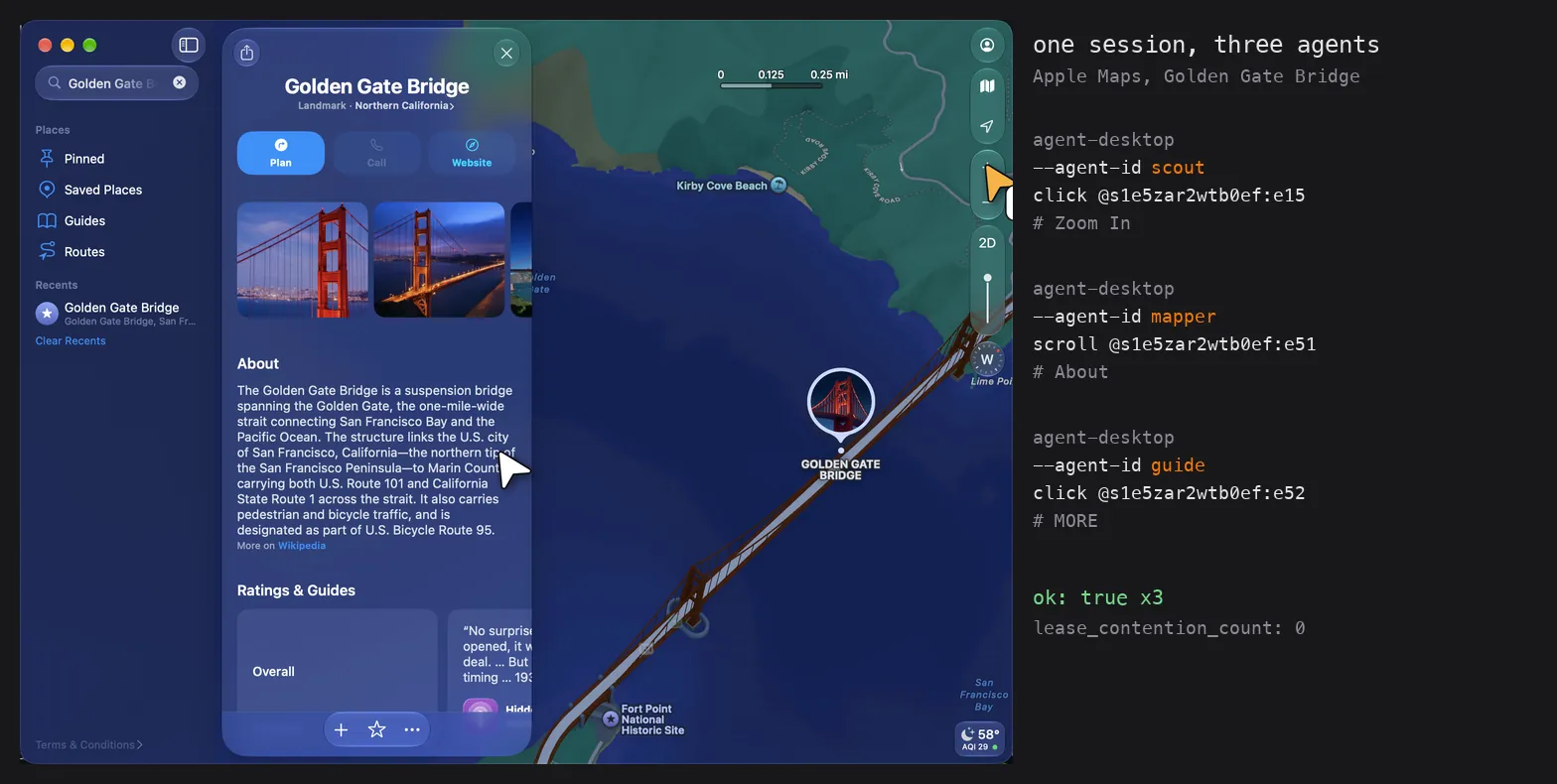
For harness subagents, session start with —cursor —multi-agent enables a cursor per session and agent id. Start the session once, export the id it prints, and give every agent its own --agent-id.
agent-desktop session start --cursor --multi-agentexport AGENT_DESKTOP_SESSION=<id printed by session start>agent-desktop --agent-id scout click @s1e5zar2wtb0ef:e15agent-desktop --agent-id mapper scroll @s1e5zar2wtb0ef:e51 --direction downagent-desktop --agent-id guide click @s1e5zar2wtb0ef:e52On one Maps window, three agents ran at the same time: scout clicked Zoom In, mapper scrolled the About section and guide clicked MORE. All three returned ok true with a lease_contention_count of 0, and each went through the accessibility API. A snapshot id created in a session is not a cross-session handle, so each agent snapshots inside the session it was given. If the tool is wired in through a subagent, the same rule holds.
Everything it can do
It ships 60 command names, 56 operational commands. The README groups them like this.
| Group | Commands |
|---|---|
| Observe | snapshot, find, get, is, screenshot, list-surfaces |
| Act on a ref | click, double-click, triple-click, right-click, type, set-value, clear, focus, select, toggle, check, uncheck, expand, collapse, scroll, scroll-to |
| Keyboard and mouse | press, hover, drag, mouse-move, mouse-click, mouse-wheel |
| Apps and windows | launch, close-app, list-apps, list-windows, list-displays, focus-window, resize-window, move-window, minimize, maximize, restore, open-system-surface |
| Notifications | list-notifications, dismiss-notification, dismiss-all-notifications, notification-action |
| Clipboard | clipboard-get, clipboard-set, clipboard-clear |
| Wait | wait |
| Sessions | session, trace, cursor-overlay |
| System | status, permissions, version, batch, skills |
A few of them on Maps:
wait --text "Golden Gate Bridge"found the text in the search box after 194 ms.resize-window --width 900 --height 700came backdelivered_verified.typeinto the search box was refused headless withPOLICY_DENIED, and worked with--headed, which allows physical input.statusreports which permissions are granted, andlaunchandclose-appstart and quit an app cleanly.
The docs also ship inside the binary: agent-desktop skills get desktop prints the loop, and the README suggests putting it in your AGENTS.md.
Put a decision model on top
The snapshot-and-act loop needs something that chooses the next step. The optional JEV helper sends screen descriptions to a configured model provider and is separate from the native CLI. The pattern is one plain-language goal in, one operation per turn, a stop when the model says done, blocked or unsure, and a short JSON line per turn so the full tree never enters the agent’s context.
A goal-driven wrapper over the same loop took the goal “zoom the map out once by pressing the Zoom Out button, then stop”. Turn one was a click on the button named Zoom Out, with a lease hold of 314 ms. The next line was the stop: done, at 0.94 confidence.
| Turn | What it printed |
|---|---|
| One | CLICK on button “Zoom Out”, delivered_unverified |
| Two | stop: done |
The click’s delivery was delivered_unverified, so keep your own snapshot check. Snapshots, clipboard reads, screenshots, command output and debug artifacts can contain private desktop content, so keep them out of public logs and uploads.
Verdict
Computer use for agents with agent-desktop is install, grant, snapshot, click a ref, snapshot again. Scope the reads on dense apps, give each agent its own id on a shared app, and add a decision model once the loop is steady. For tool wiring, see Claude Code MCP servers.
Read the rest in the official repo: vercel-labs/agent-desktop on GitHub
Sources:vercel-labs/agent-desktop on GitHub, agent-desktop README, agent-desktop CONCEPTS.md, npm registry: agent-desktop.
Responses
Keep reading
A 600k-row queue slowed our Mac to a crawl
Load past 30 on a 10-core Mac, swap nearly full, fseventsd pinned for hours. Spotlight was the wrong suspect; a SQLite job queue sorting every row into a temp file was the lead.
A week on Sonnet 5.5: what my agent numbers show
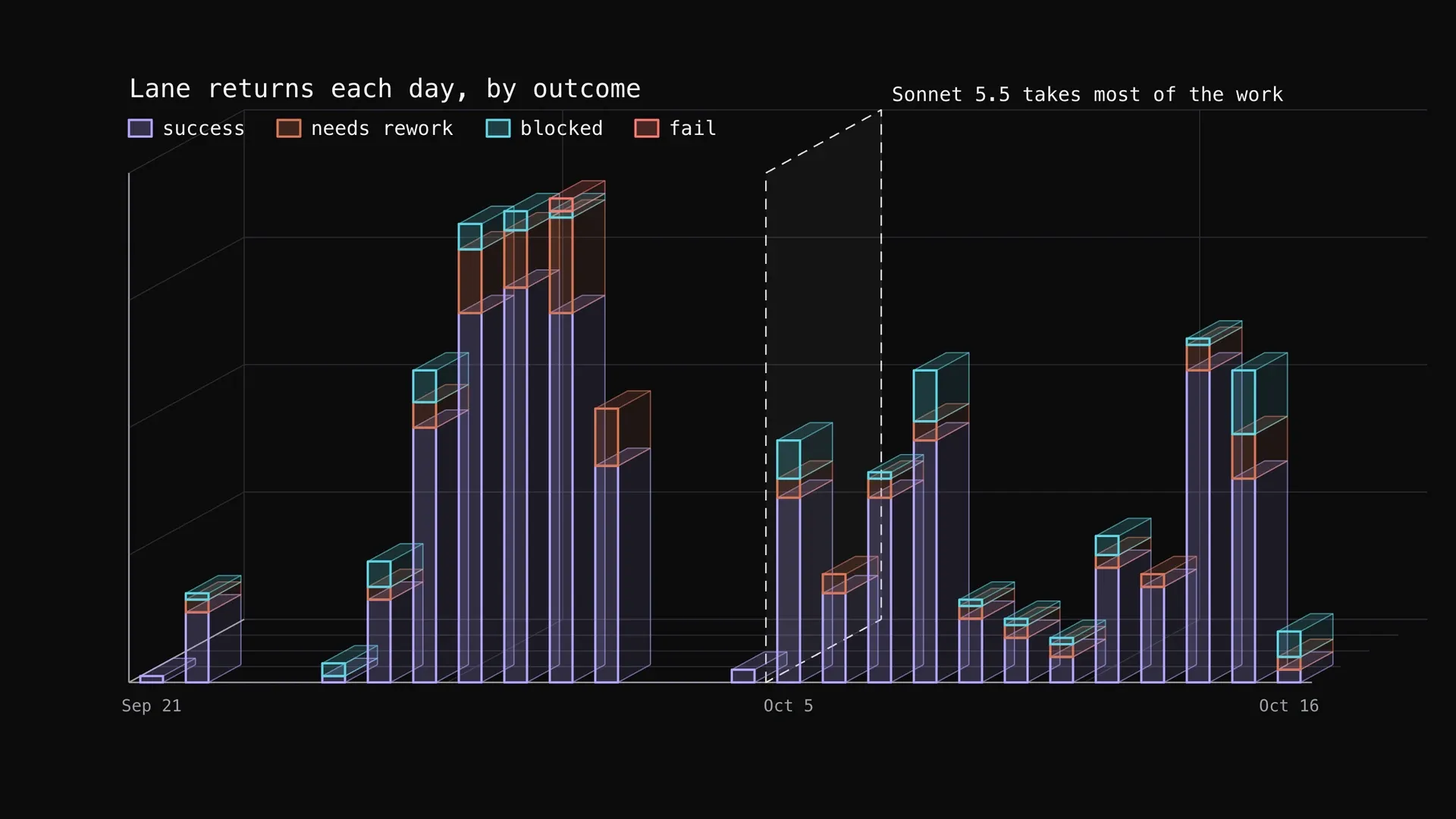
I moved most of my agent work from Opus 5.5 to Sonnet 5.5. Success stayed near 78 percent, rework fell, and blocked doubled. The usage charts, and why reworks mostly need a person, not a fix.
How to pace your Claude subscription to survive the week
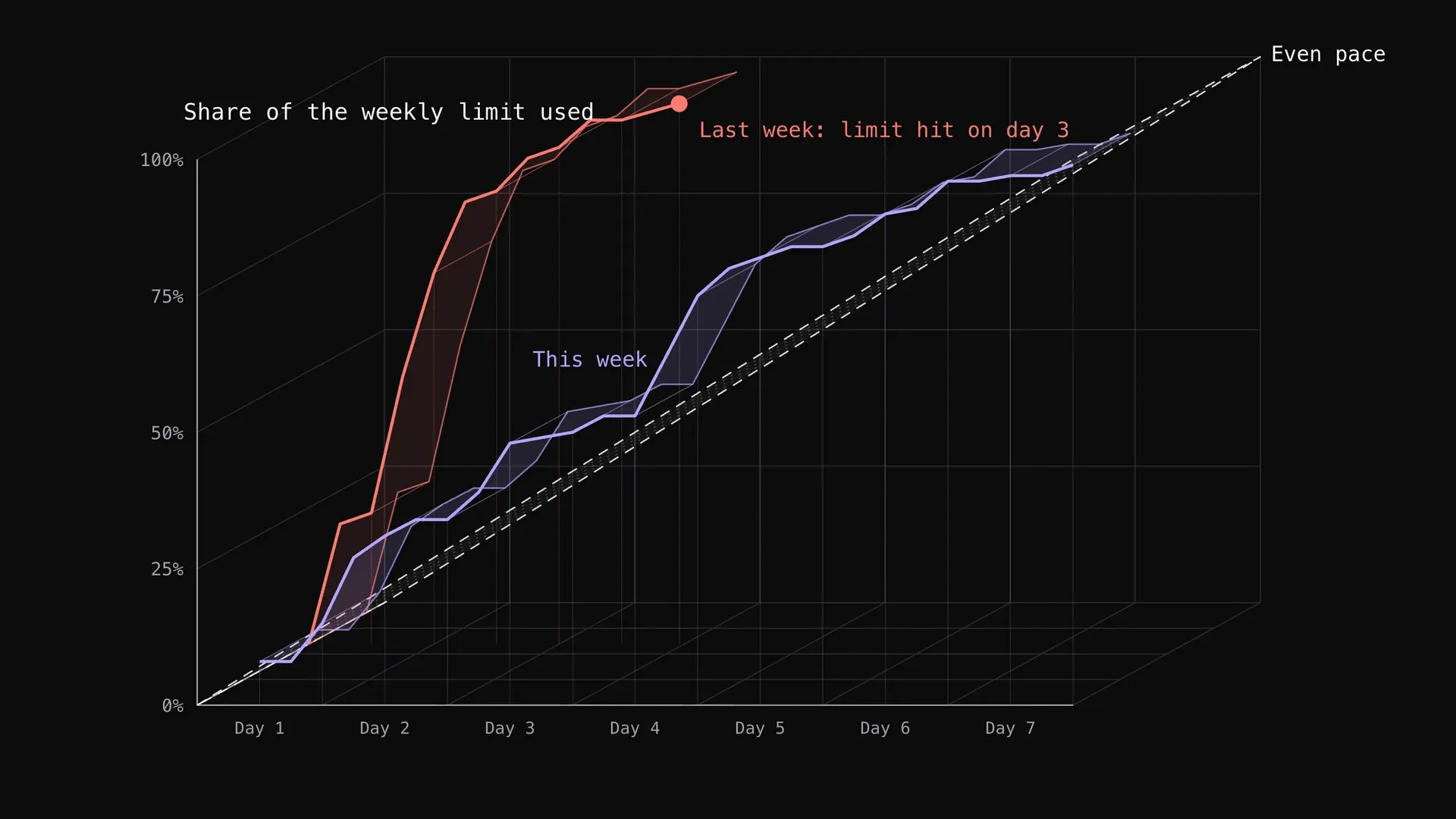
My Claude weekly limit ran out on day 3 one week and lasted all seven days the next. What changed: a simple wait rule for the strongest model, and the cheaper model doing more of the work, with the real usage charts.