How to play Aniimo on a Mac with GameHub
Aniimo has no Mac version, but it runs on a MacBook Air M4 through GameHub. Here is the setup, step by step.
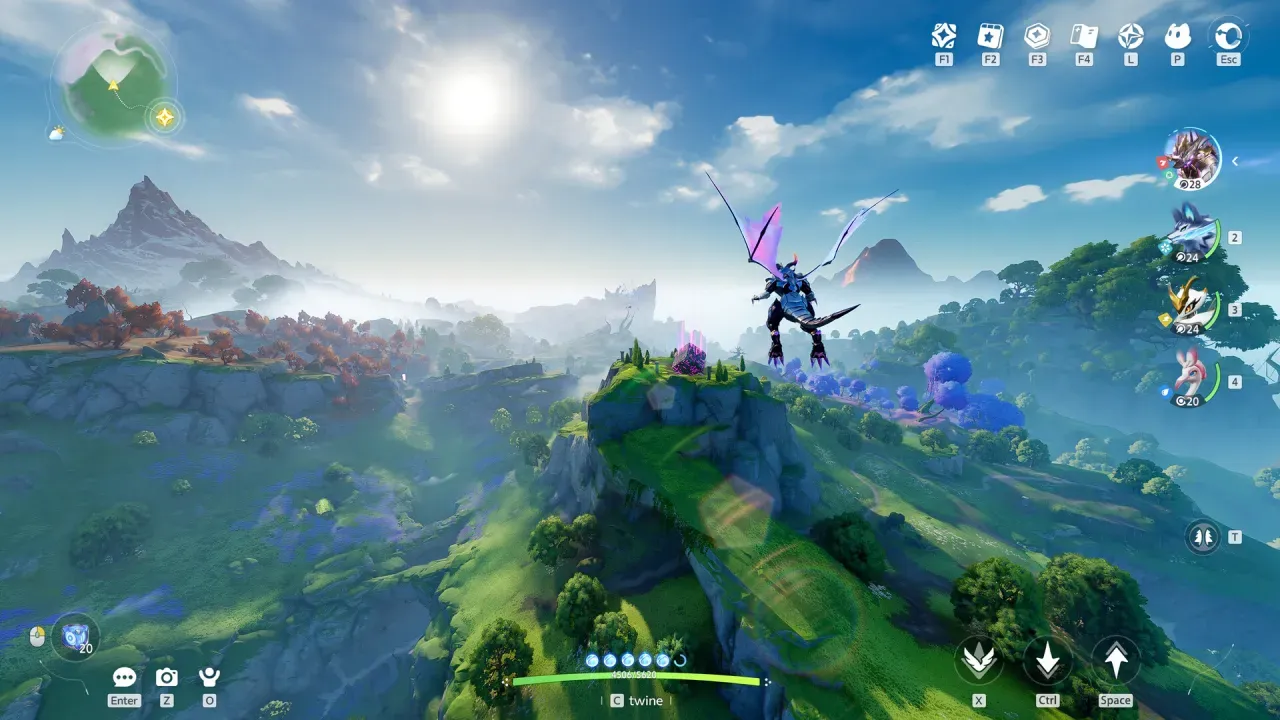 Pawprint Studio
Aniimo has no Mac build, but it runs on a MacBook Air with the M4 chip through GameHub, which runs Windows games on an Apple silicon Mac. The catch: the game opens narrower than the screen, and frame generation only applies when GameHub starts the game.
This guide follows one run: GameHub 0.8.613, Aniimo installed from its own free Windows installer (32.3 GB when the download finished), the wine-proton_10.0 compatibility layer and frame generation at 2x.
1. Install GameHub and sign in
- Download GameHub Mac from the GameHub site and install it as any Mac app.
- Open GameHub and click I have games, then Bind Steam, then Go to login and the Google button. The browser has to be signed in to Google first.
- Enter the email code GameHub sends.
- In My Games, click Connect Steam Now, then Click to Add, and sign in to Steam with the QR code or an account name and password.
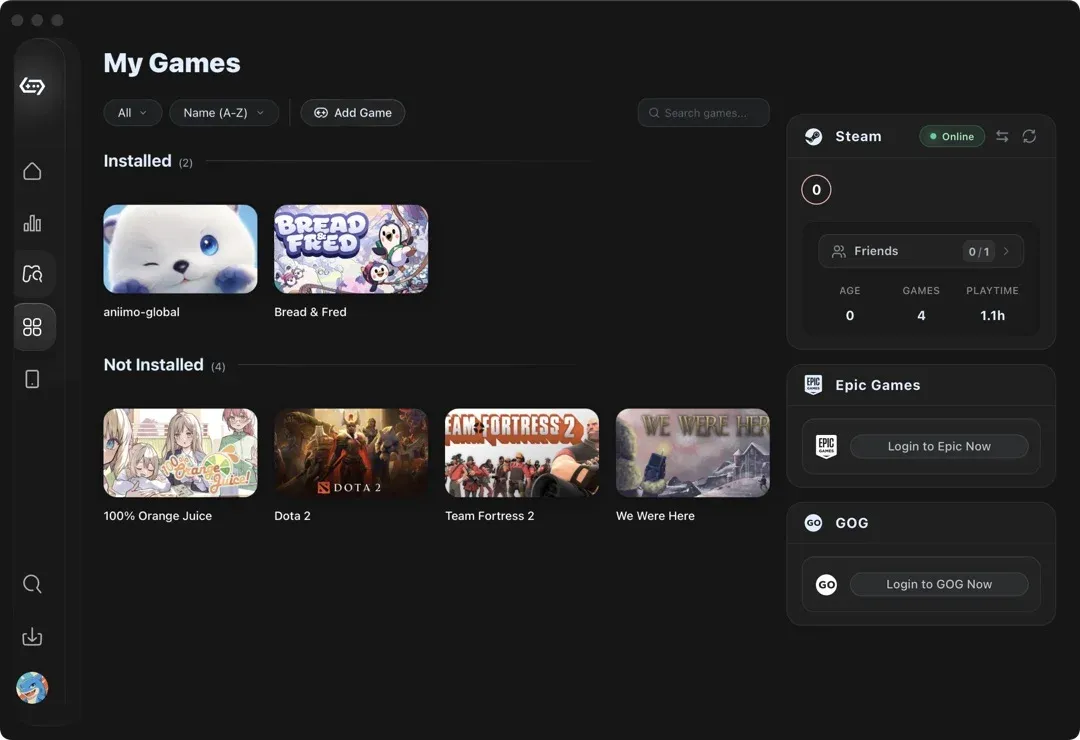
2. Add Aniimo from its installer
- On the Aniimo site, click Download Now. The file is a Windows installer.
- In My Games, click Add Game, choose Select Game / Local Game and click Drop files or folders here or click to browse.
- In the macOS window that opens, press cmd+shift+g, type the location of the installer and press Return twice.
- Wait for Matching game data…. The entry appears under Installed. Click Play.
Play ran the installer inside GameHub’s Windows container and put Aniimo in a folder named Aniimo on the container’s C drive. Aniimo’s launcher then downloaded the game, 32.3 GB in all.
The entry installs again on every Play. Two routes inside GameHub to point it at the installed game did not work: adding the installed launcher as a new game made a second container that could not start the game, and the game path on the General tab did not change after two attempts. We did that step outside GameHub and leave it out here.
3. Choose the compatibility layer and frame generation
- Open the game page from My Games, click the three-dot button beside Play, then click Game Settings.
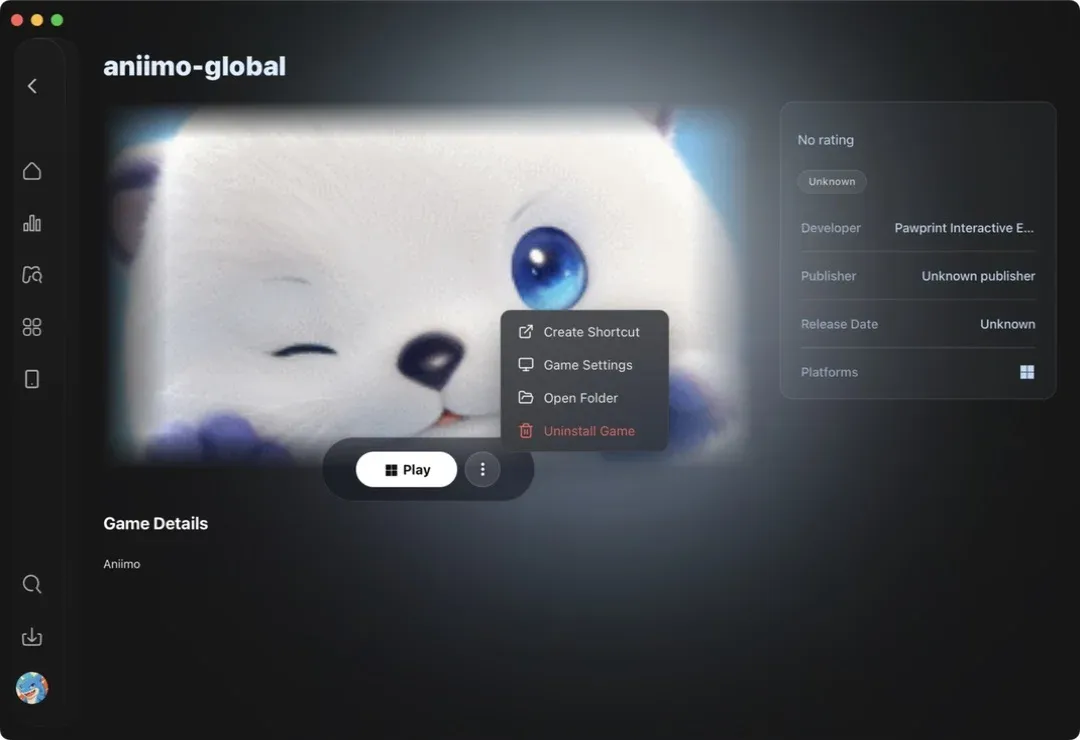
- Game Settings opens on General. The tabs run down the left side: General, Container, Compat, Graphics, Frame Gen and Deps.
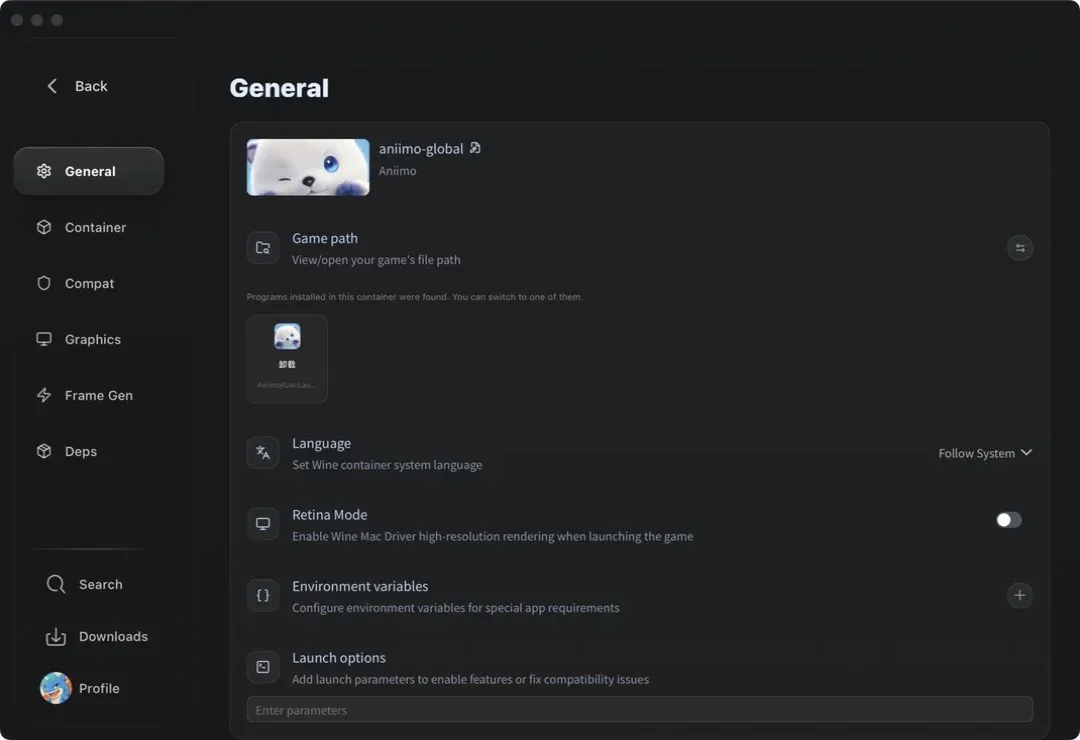
- Click Compat, open Compatibility layer and choose the last entry,
wine-proton_10.0. A layer that is not installed downloads first. - On the same tab, turn Gamepad compatibility mode off.
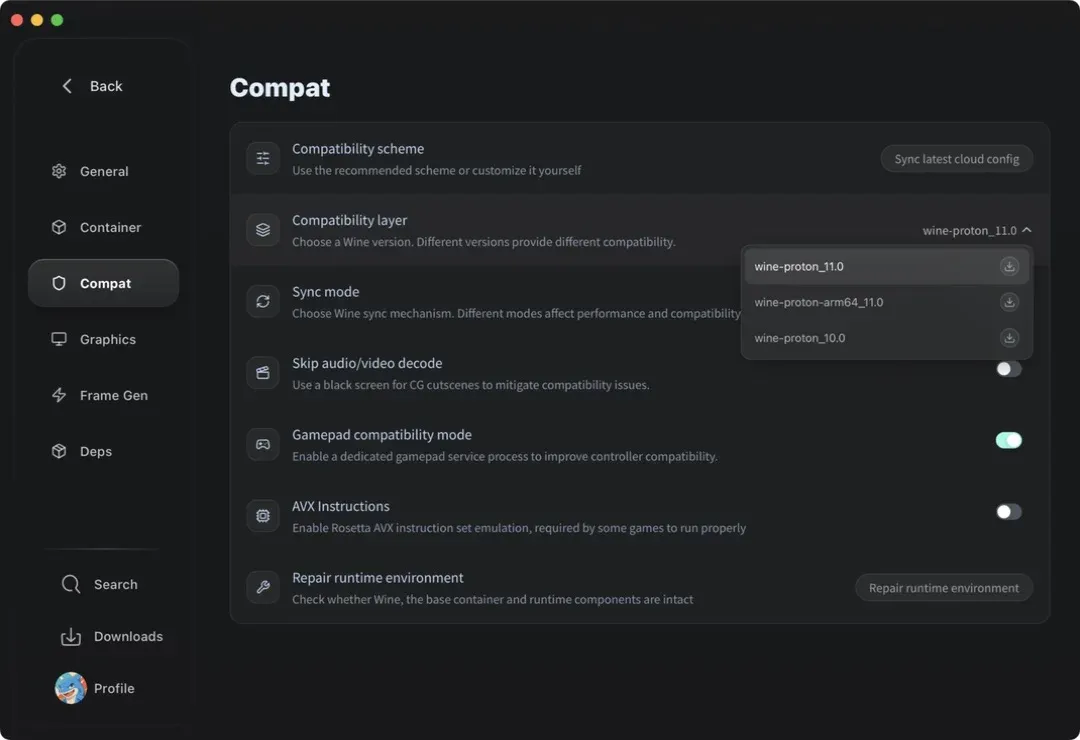
- Click Frame Gen, turn on Enable Frame Gen Module and raise the multiplier from 1 to 2.
4. Play Aniimo
Click Play on the game page. Frame generation applies only when the game starts from GameHub, not from another route.
To make a Desktop shortcut, open the three-dot menu beside Play and click Create Shortcut. The new app carries the game’s name. Opening it starts the game through GameHub with the saved settings. The button is disabled while another copy of the shortcut exists on the Mac.
What to expect in Aniimo
- The game opened at 1280 by 918, narrower than the screen, with black bars at the sides. It writes that size back at every start, so full screen needs the game’s own resolution menu.
- With the Metal HUD, a frame-rate overlay, switched on, the game froze in 3 of 3 runs, between 1.5 and 5.5 minutes after the start. One run with it off was still drawing frames at 7.5 minutes, which is a single run.
Verdict
Aniimo ran on a MacBook Air with the M4 chip once GameHub had installed it from the game’s own installer. The compatibility layer and frame generation are a few clicks in Game Settings, and frame generation applies only when GameHub starts the game. The game opens narrower than the screen until you pick a size in its own resolution menu.
Play Aniimo on your Mac today: download Aniimo for free at aniimo.com, then get GameHub for Mac at gamemac.com to run it.
Responses
Keep reading

Aniimo codes, tier list and map
Every working Aniimo gift code and how to redeem it, a tier list of the best Aniimo by role, and the map of Idyll with its 14 regions, Sanctum teleports and an interactive map for chests and spawns.

How to play multiplayer in Aniimo
How to unlock multiplayer in Aniimo at character level 14, add a friend by UID, invite them to a party of up to four and join the same world, with the limits on crossplay, server region and shared progress.
Claude Code usage limits: what burns your quota and how to stretch it
What the Claude Code five-hour and weekly limits are, how they show up, what spends them fastest (long context, large tool output, parallel agents, model choice, retries) and the documented ways to stretch them, with one measured plan week.